
(SPOT.ph) Maya, formerly known as PayMaya, is one of the commercially available e-wallets to Filipinos. While this single platform already has a suite of services, we say it's best to use multiple e-wallets for different reasons or payment options. And yes, you can transfer money to and from different banks and e-wallets. In this guide, we show you how to transfer funds from Maya to GCash.
You might have first heard of the e-wallet as PayMaya. They rebranded to Maya in late 2022 in line with it growing from its initial main focus as a payment central to an all-around digital banking platform. It took the Maya Bank's digital banking products and services and integrated it with PayMaya's payment platform to turn into Maya, a "revolutionary, game-changing, and relevant digital financial service" it said online.
Step-by-step guide to transferring from Maya to GCash
- Log In
- Tap "Bank Transfer"
- Tap "GCash"
- Fill in needed details
- Double-check summary
- Enter the One-Time-Pin
- Save the transaction's Reference ID
Also read: PayMaya Launches Crypto Feature, Here's Your Guide
Here’s how to transfer funds from Maya to GCash:
Log into your Maya account
After logging in to the Maya app, tap ‘Bank transfer’.
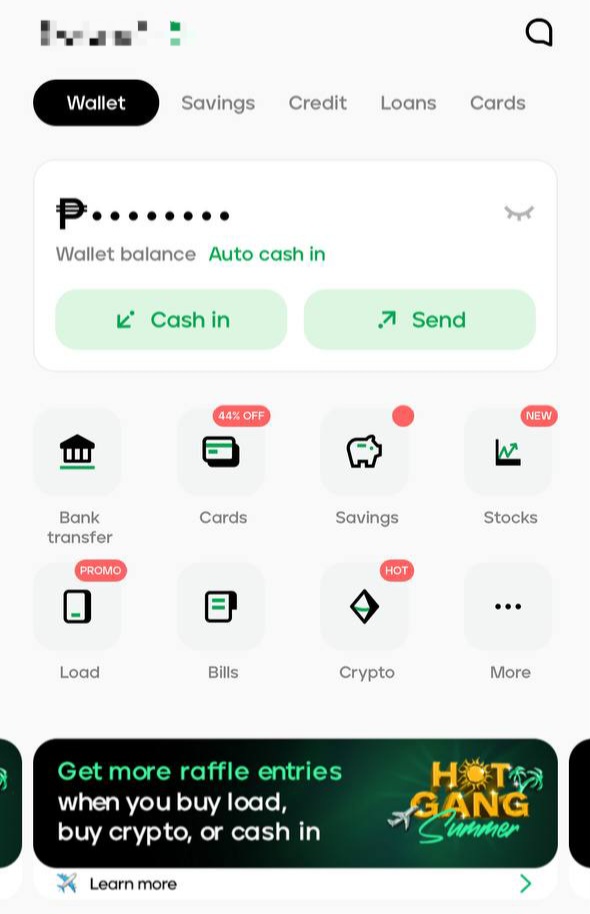
Head to the "Bank Transfer" service
On the homepage, look for the icon for Bank Transfers. It's the first one on the left below your balance.
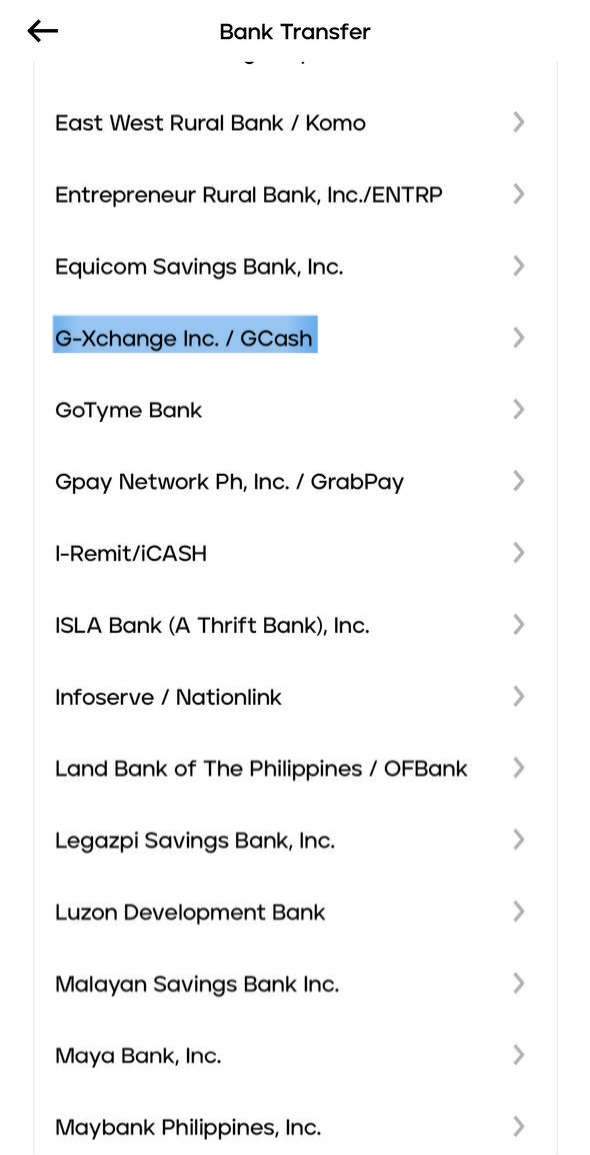
Scroll down and tap ‘GCash’
Tapping the icon will lead you to the list of entities you can transfer to. Scroll down and select "G-Xchange Inc. / GCash."
Enter the needed details
Input the amount, purpose of transfer, and GCash account details. Once done, confirm the details to move to the next page.
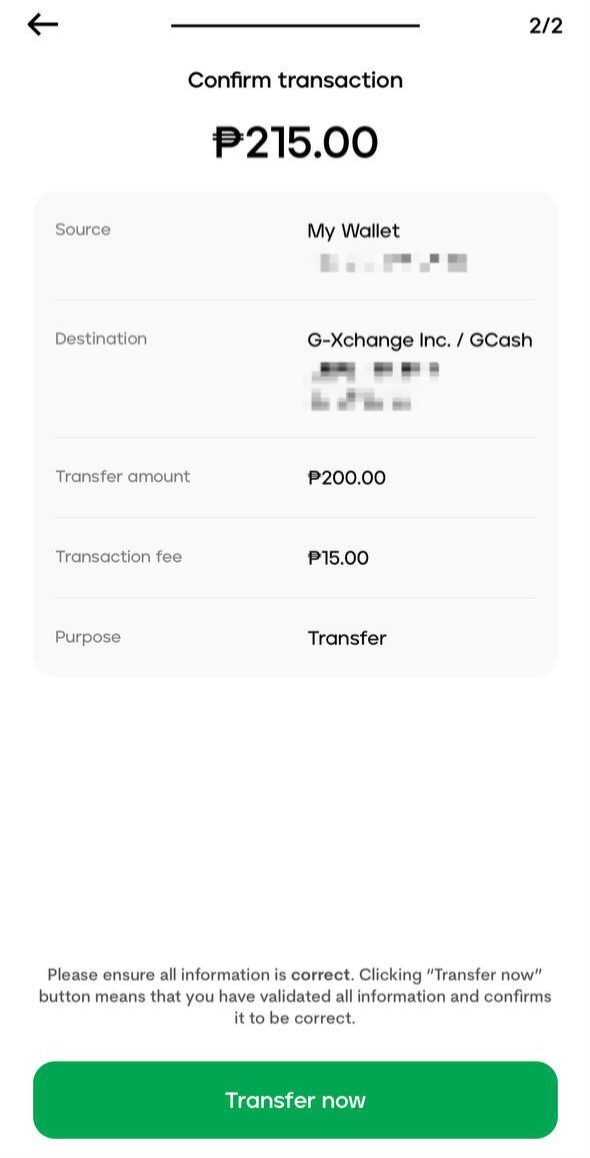
Double check the summary
Tap next. You will be shown a summary of details before proceeding with the transaction. If all details are correct, tap ‘Transfer now’.
Note that each transaction comes with a P15 fee on top of the amount you’re transferring. The transaction fee will be deducted from your Maya wallet.
Enter the One-Time-Pin
You’ll receive a one-time pin to your linked mobile number before the transfer is made.
Save the transaction's Reference ID
If the transaction is successful, you will be given a copy of the details and a Reference ID. These details will also be available at your account's history, but it's best to take note of this specific screen, too.
MORE ON MAYA:
GUIDE: How to Cash In on PayMaya for Free Via BPI, MiniStop
PayMaya's Parent Voyager Plans Digital Banking Venture