
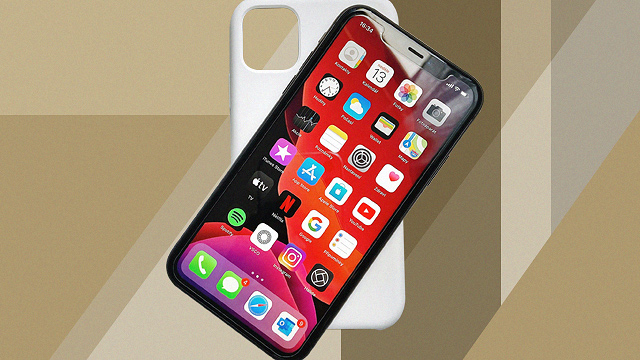
There are plenty of features that Apple iPhone fans love about their devices. While you may be an iPhone loyalist for years who already knows the ins and outs of your gadget, there might be a couple of useful iOS hacks you haven't discovered yet. You can make your life much easier with these tricks, some of which shared on TikTok by user Jessica Wang.
iPhone users, these hacks will make your life easier:
Take a screenshot of the entire webpage
Taking screenshots of an entire article can be tiring, not to mention it fills up your phone gallery fast. Did you know that you can take a photo of the entire website in one go? When you take your regular screenshot, pause before saving (or deleting) and choose "Full Page" capture instead of the default "Screen."
Hide your selfies
Too shy to show the exact number of selfies you take before you choose the one that ends up on your feed? It's not a bad thing to have options, but if you want to hide photos in your gallery, here's what to do.
Go to your gallery and select the photos you want to hide. Tap the Share button (the square with an upward arrow), then choose Hide (eyeball symbol). It's that easy!
@jessicawangofficial Bet you didn't know some of these iPhone tricks. ##iphonetricks ##iphonehack ##productive ##fyp
? original sound - jessicawangofficial
Turn your iPhone into a magnifying glass
If you have a tendency to squinting to read the ingredients list on your latest purchase, your phone can help you out with that. Go to the Settings app, choose Accessibility, then turn the Magnifier toggle button on. Simply triple-tap the iPhone lock button to use it!
@jessicawangofficial Thank you for 7m views. Part 2 of iPhone tricks. Which one do you find helpful? ##iphonehack ##iphonetricks ##fyp
? original sound - jessicawangofficial
Quickly turn photos into PDFs
Need to send documents for work, but don't have a scanner at home? No problem. Press down and hold the Notes app, then select "Scan Document" from the pop-up menu. Go ahead and take those photos! You can choose to store the PDF on your phone or share it with other people.
Easily share your location instead of typing out the entire address
Ever rushed out to run errands and forgot to tell someone where you were going? Instead of typing out the entire address, simply turn on your Location Services in the Privacy settings, then type out "I'm at" in iMessage. You'll see "Current Location" in the fill-in bar above the text box.
@jessicawangofficial Part 3! Bonus tip: save the video to replay at a slower speed. ?? ##iphonetricks ##iphonehack ##fyp
? original sound - jessicawangofficial
Zoom in on a certain point of your screenshot
Want to emphasize something in a screenshot you just took? When you take a screenshot, click the "+" symbol when editing it, then select "Magnifier." You can zoom in and enlarge the circle as you please.
@jessicawangofficial iPhone tricks part 4. leave your questions in the comment and I will select a few to answer in the next one. ???? ##learnontiktok ##iphonetricks ##fyp
? original sound - jessicawangofficial
Find a specific word when using Safari on mobile
If you're reading a pretty long article on Safari and lost your reference point, it can be pretty annoying to have to scroll up and down just to find a specific sentence. Solve this problem by typing your keyword in the search bar on top. Instead of selecting the blue "go" button, read the options displayed on your phone screen and select Find
@jessicawangofficial Reply to @uknowhatheysay ##iphonetricks part 5. Comment with your questions and I will try to answer them in future videos. ##fyp ##iphonehacks
? original sound - jessicawangofficial
Record a video while music plays in the background
Don't you hate it when your phone pauses the song you're currently playing whenever you decide to record a video? Work around this by taking advantage of the QuickTake feature. Hold down on the shutter button in Photo mode, and swipe right to lock and keep recording. Tap the shutter button again when you're done. Swipe up when you see 1x to change the video ratio to the vertical 16:9 format-perfect for Instagram Stories and TikTok! Note that this feature is only available for the iPhone SE (2nd generation), iPhone 11, iPhone 11 Pro, and iPhone 11 Pro Max.
@jessicawangofficial iPhone tricks part 6. ##iphonetricks ##iphone ##fyp ##iphonehack
? original sound - jessicawangofficial
Easily delete wrong entries when using the calculator
If you make a mistake inputting the wrong number, don't hit the C button to clear the entire formula. Instead, swipe left or right to backspace.
@jessicawangofficial iPhone tricks part 7. So happy you guys enjoy this series ????. ##iphone ##iphonetricks ##fyp
? original sound - jessicawangofficial
Do voiceovers
You really don't need to buy a mic for your video projects: Your iPhone allows you to save voiceovers for easier editing. Go to the dropdown menu, tap and hold the Screen Recording icon, then turn the microphone on. Then start recording your new voiceover!
@jessicawangofficial Screen record with voiceover ##iPhonetricks ##iphone ##fyp ##iphonetips
? original sound - jessicawangofficial
Cosmo.ph. Minor edits have been made by the editors.