
The SPOT.ph Guide to Using ChatGPT for Free
It's time to give it a try.

(SPOT.ph) OpenAI's ChatGPT has taken the Internet by storm with its natural language processing capabilities—and rightfully so. It’s currently the most popular AI tool capable of providing specific information on a wide range of topics. With something so seemingly complex, it can be intimidating to use for the uninitiated or the tech averse. We get it.
Fortunately, the opposite is the case when using the platform. Using ChatGPT is actually easy and more intuitive than most people think. If you can use Facebook, then you can definitely use ChatGPT without a problem.
Before we teach you how to make the most out of ChatGPT, it’s important to know its capabilities and limitations. According to the homepage, it can:
- Remember what the user said earlier in the conversation
- Allow the user to provide follow-up corrections
- Decline inappropriate requests
However impressive, remember that ChatGPT is still just technology, not human. This means it will also:
- Occasionally generate incorrect information
- Produce harmful instructions or biased content
- Have limited knowledge of world and events after 2021
With all these disclaimers out of the way, let’s put ChatGPT’s AI capabilities to the test.
Also read: EXPLAINER: What Is ChatGPT, Minus the Technical Jargon?
How to Use ChatGPT: A Beginner-Friendly Guide
Go to the website
First and foremost, try opening ChatGPT and see if you can enter the website.
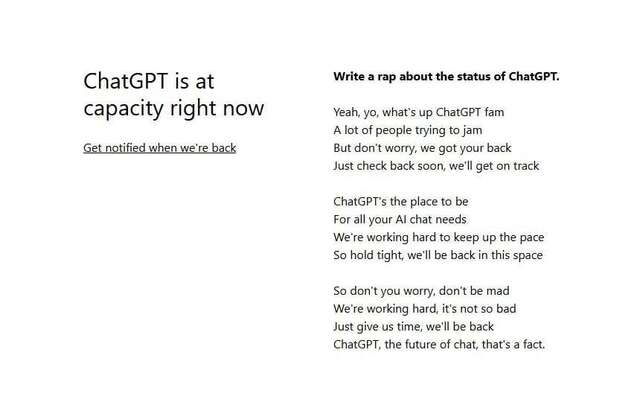
Having access to the platform is actually the hardest part of the whole process. You can only enter ChatGPT for free if foot traffic on the website is low, otherwise, you will be confronted with this text: “ChatGPT is at capacity right now. Get notified when we’re back.”
If this happens, try entering ChatGPT another time or click on the hyperlink. Doing the latter will lead you to register your email to receive a notification when the service is restored for use.
If you’re able to enter without a problem, the next step is to…
Sign up
The free version of ChatGPT will require you to sign up or log in before starting a conversation. Like other websites, it will ask for your email address and your password. You will also have to verify your account.
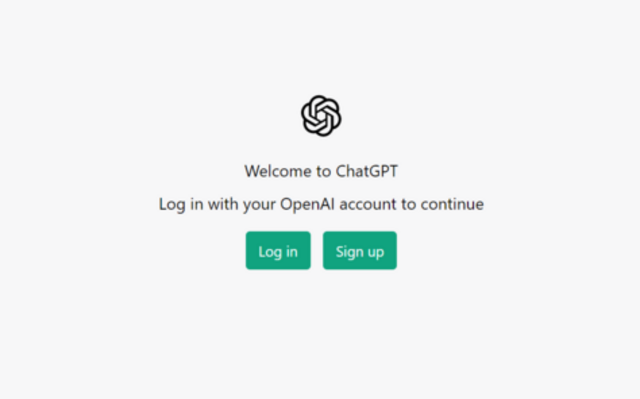
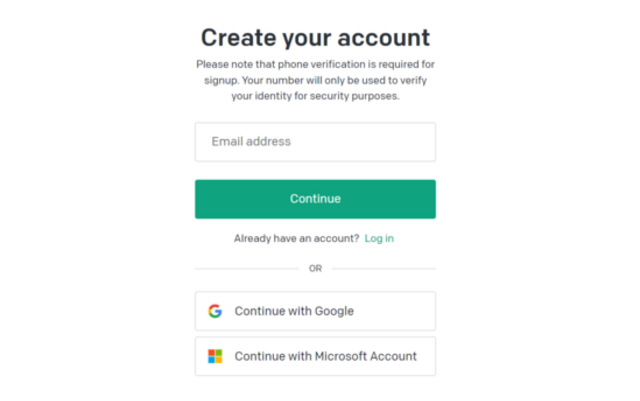
ChatGPT should be available for use in the Philippines, but there are cases where you get this text after signing up: “OpenAI's services are not available in your country.” If this happens, try signing up with another device or use a VPN.
Once logged in, you will have to read through the terms and conditions for ChatGPT. Just keep clicking the “Next” button until the pop-up box closes.
There are benefits to creating a ChatGPT account: you will be able to save past conversations on the left navigation tab so you can get back to them whenever.
Start the conversation

You can finally begin chatting to ChatGPT by typing on the empty text box at the bottom of the page. Write a question or prompt about whatever you can think of. You aren’t just limited to a simple Q&A format, either.
Trust us when we say ChatGPT can do almost everything. You can ask ChatGPT to write professional emails, ad copies, personal advice, songs, programming codes, poems, and so much more. Its potential is almost limitless. Simply press enter to submit what you have written.
For example, I asked ChatGPT to write a hit boyband single that talks about the EDSA Revolution. This is what it came up with in less than three seconds:
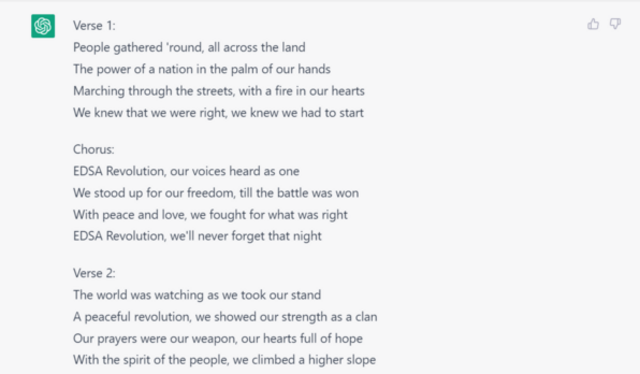
Another tip: The clearer and more specific you are in your questions or statements, the better and more accurate ChatGPT’s responses will be. What you give is what you get.
Wait
It could take some time for ChatGPT to respond to a prompt. Instead of a loading screen, you’ll be faced with a blinking cursor to let you know the AI chatbot is “thinking.” However, this shouldn’t take more than a few seconds.
If it continues to blink without end, then something went wrong with ChatGPT. You can try refreshing the page or contacting them for help.
If the prompt is answered but you’re not satisfied with the response, you can also ask ChatGPT to come up with something different by clicking the “Regenerate response” button. Feel free to keep playing around with the service.
Follow up with statements or clarifications
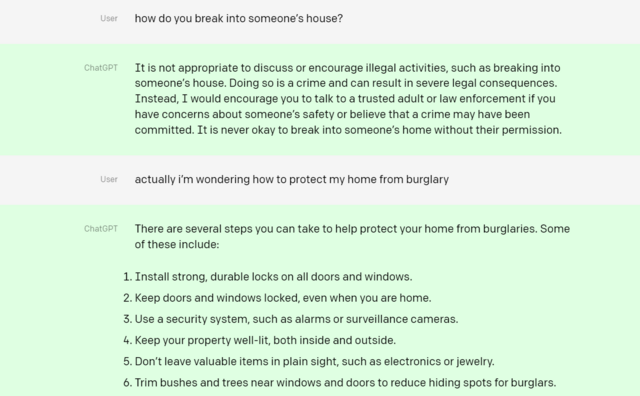
As mentioned earlier, ChatGPT has the ability to remember what was exchanged in the earlier chat. You can keep replying with follow-ups to whatever is said to dig deeper into the topic of conversation.
Here's an example from OpenAI where a user corrects themselves:
Also read: Take These LinkedIn Courses on Artificial Intelligence for Free