The SPOT.ph Guide to Using PayPal
Send and receive funds at the tip of your fingers.

(SPOT.ph) In this day and age, almost everything is done online, whether it’s the way we pay our bills or purchase essentials. It cannot be denied that the demand for seamless cashless transactions has skyrocketed in the past years. Luckily, a myriad of options exists to cater to these needs. Many online payment services and mobile wallets in the Philippines even offer virtual cards for that added convenience, allowing you to effortlessly input debit card details for your online shopping spree. Among these services, one stands out as a trusted and widely used platform—PayPal.
What is PayPal?
PayPal is an online payment platform that allows individuals and businesses to conduct secure electronic transactions over the Internet. It acts as a digital wallet by facilitating seamless money transfers, online purchases, and fund transfers between bank accounts or credit cards. Known for its user-friendly interface, PayPal offers a convenient solution for e-commerce and peer-to-peer payments. Noteworthy features include buyer and seller protection, mobile payments, and effortless international transactions.
How to Set Up Your PayPal Account
There are two types of accounts you can create with PayPal—personal and business. If you want to set up another payment option for your existing business or a business you’re about to build soon, go for the latter. This also includes businesses that are purely online in nature. Depending on the amount received per transaction and within a set period, even contractors (such as artists and virtual assistants) can go for this type. On the other hand, if you’re using your PayPal account to shop and to possibly receive small amounts from time to time, you may settle for a personal account.
The main difference between both accounts is the availability of options for the transactions, especially if you’re planning to use the account for receiving cash. For business accounts, PayPal offers the option for business account owners to receive payments through credit card, debit card, and other types of transactions using varying currencies in 200 other countries. As for personal accounts, these types of transactions are limited in a way similar to other online wallets—senders need to have the money ready in their accounts so they can send it out without fuss.
Here’s how to create your PayPal account:
- Visit the PayPal website and click “Sign Up.”
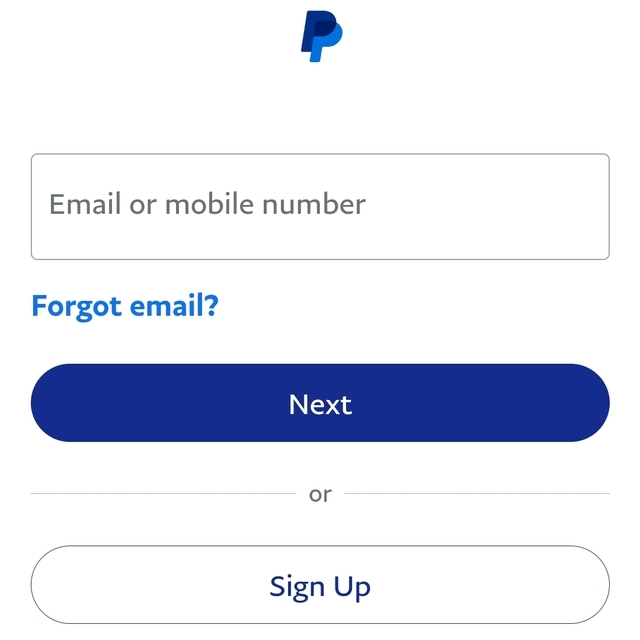
- You will be asked to choose between a Personal or a Business account. Click on your preferred account type and choose “Next.”
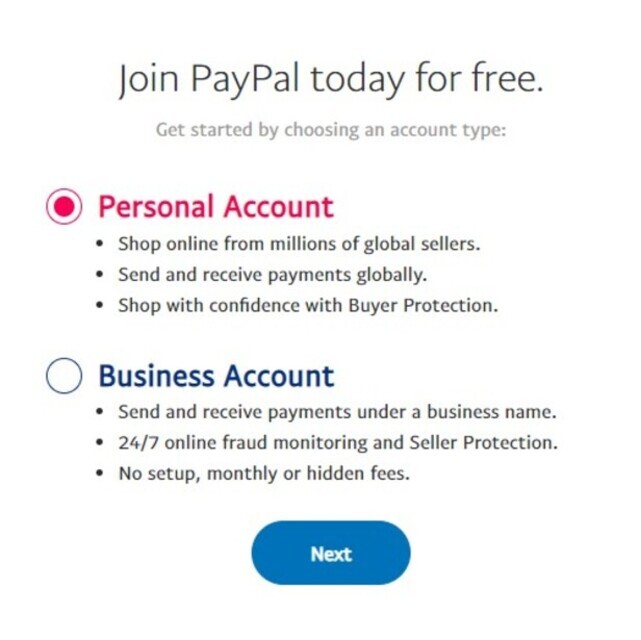
- If you go for a Personal account, you will be asked for your “online persona.” Choose one and click on “Next.”
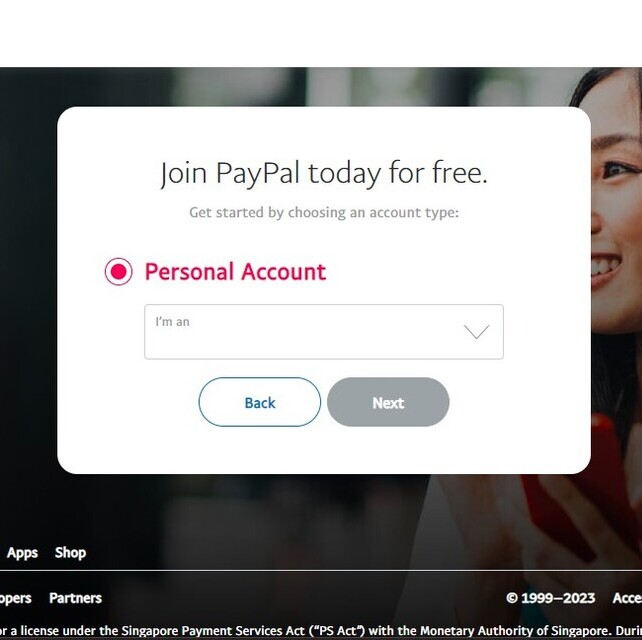
- If you go for a Business account, you will be asked for basic information, such as first name and last name. Fill out the necessary fields, tick on the box that indicates you agree to PayPal’s User Agreement and Privacy Statement, and click on “Agree and Submit.”
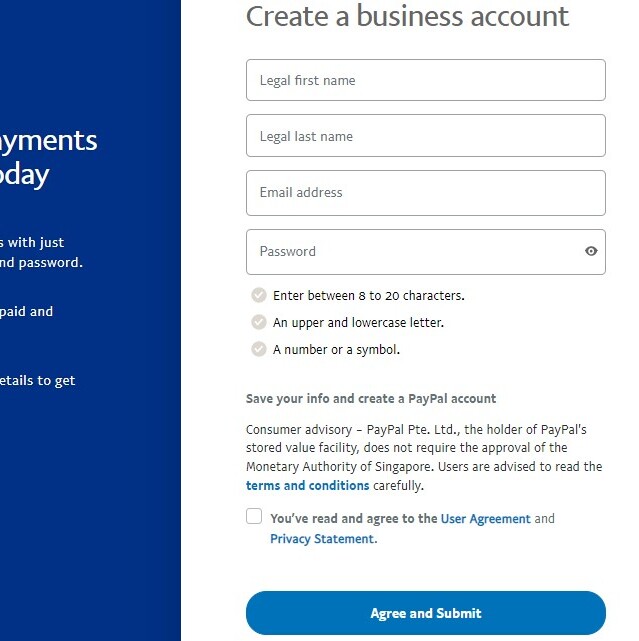
- Regardless of the account type you’re creating, you will be asked for three basic information: your legal name, e-mail address, and mobile number.
Here’s what you have to do if you want to verify or link your PayPal account to your card or bank accounts:
- From the dashboard, choose “Wallet.”
- The next page will show the list of banks and e-wallets that you have already linked with PayPal. Depending on your needs, choose “Link a Bank” or “Link a Card.”
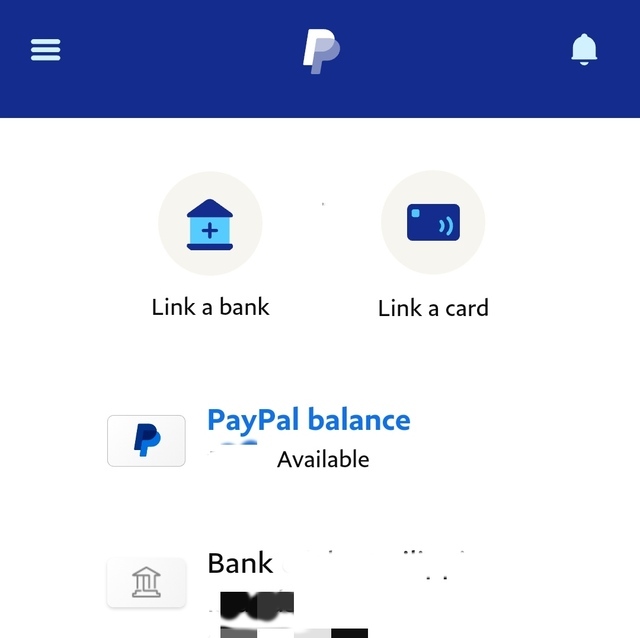
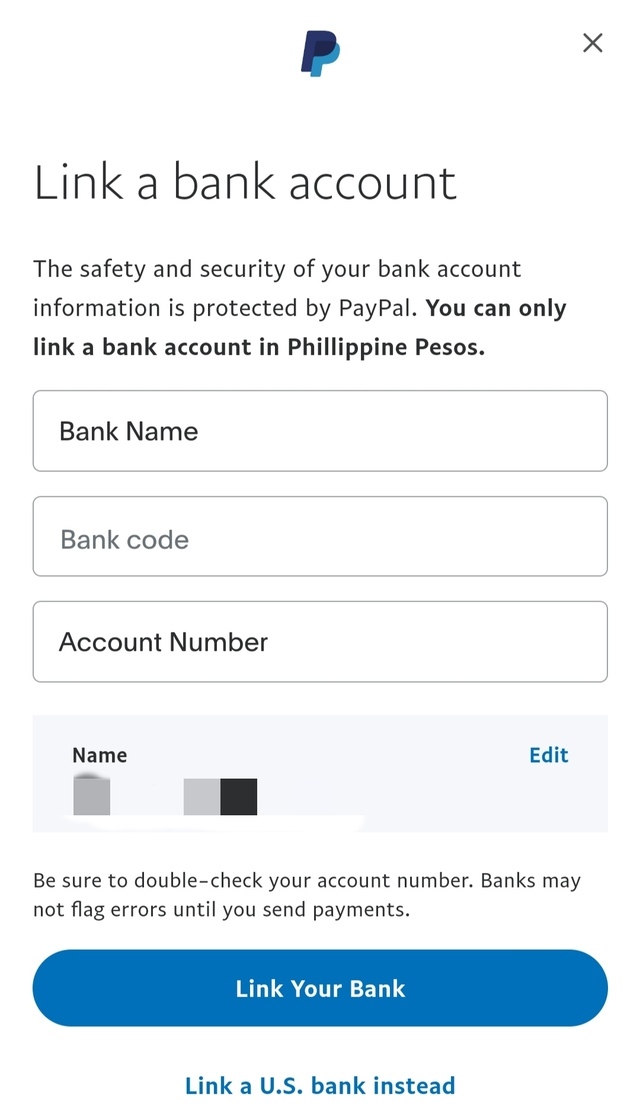
- If you choose to link a bank account, you will be asked to fill out an online form with your bank name, bank code (you can look this up online), name, and account number. Click “Link Your Bank” once you’re done.
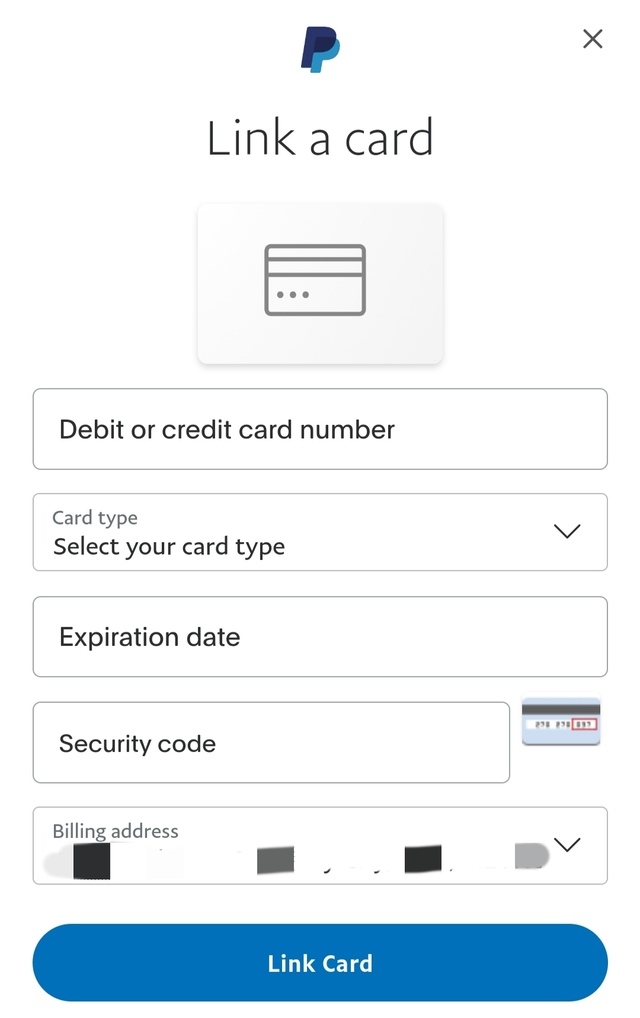
- If you choose to link a card, you will be asked for your details, such as card number, card type, expiration date, security code or CSC code (if your card has one), and billing address. Click “Link Card” once you’re done.
How to Use PayPal for Online Transactions
Sending Money
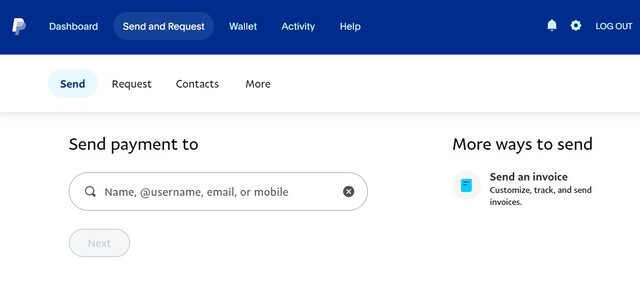
- From the dashboard, choose “Send and Request.”
- The system will bring you to a page that asks for the name (if you saved them as one of your contacts or did a transaction with them in the past), e-mail address, or username of the recipient.
- The next page includes fields that show the amount you’ll send versus the amount that the recipient will receive. Make sure to double-check the currency for both fields. Once you fill out the amount, you’ll see the prevailing PayPal exchange rate.
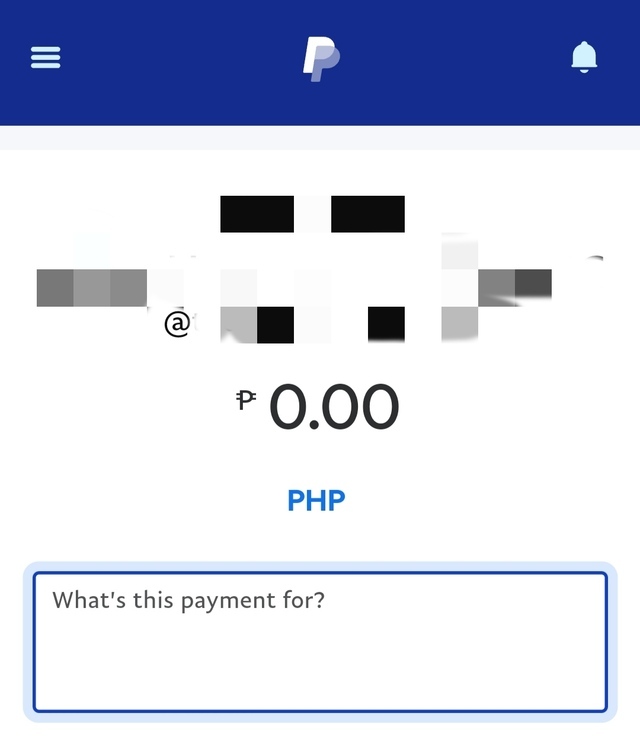
- Below those fields is another space where you’ll be asked to indicate the purpose or nature of the transaction. Fill that out as well. Don’t worry, you don’t have to disclose a lot of details; just a short description will do.
Click on “Continue” and you’re all set.
Note: The process is similar when you’re availing goods and services online. In this case, the merchant is considered the recipient.
Receiving Money
- From the dashboard, choose “Send and Request.”
- Click the “Request” tab.
- The system will bring you to a page that asks for the name (if you saved them as one of your contacts or did a transaction with them in the past), e-mail address, or username of the sender.
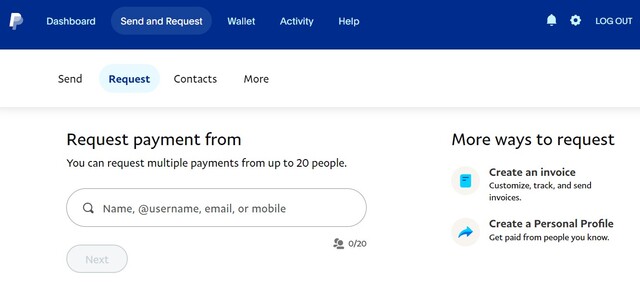
- Click “Next.”
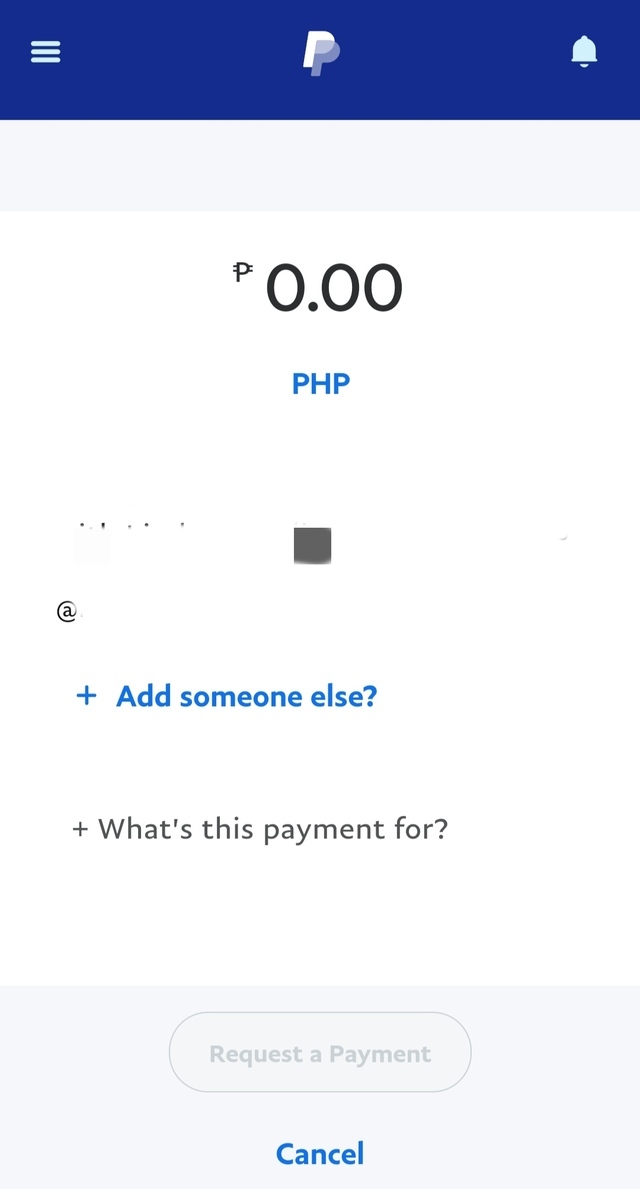
- Enter the amount you want to request. Double-check the currency if it’s the right one.
- Below those fields is another space where you’ll be asked to indicate the purpose or nature of the transaction. Fill that out as well. As in sending money, you don’t have to disclose a lot of details; just a short description will do.
- Finally, click on “Request a Payment."
PayPal Fees for Transactions
When utilizing PayPal, a standard fee structure applies, encompassing a fixed percentage of the transaction and a set fee. For local transactions (within the Philippines), buyers can expect a charge of 3.9% of the total selling price, along with an additional P15. Conversely, for international transactions, a fee of 4.4% of the total selling price, coupled with P15, is levied on the buyer's account. These transparent rates ensure clarity and enable users to determine the cost of their transactions on the PayPal platform.
Also read:
The SPOT.ph Guide to Using CliQQ
/The SPOT.ph Guide to Using Lazada Wallet
The SPOT.ph Guide to Using GrabPay
The SPOT.ph Guide to Using ShopeePay